 BetterSign™
Get early access
BetterSign™
Get early access
BetterSign™
Get early access
BetterSign™
Get early access
Docs · BetterSign Passwords
How to set up the BetterSign app as your password vault, connect the browser extension, and use it every day.
Docs › Use BetterSign Passwords
Early access. The app’s Passwords section and the browser extension are in early access. Filling Chrome, Edge or Brave on your computer works with an Android phone today (iPhone is coming). AutoFill on the phone itself works on iPhone and Android. Ask to join. Some labels may change before release.
Most password managers keep your passwords in the browser, behind a master password. BetterSign does the opposite: your passwords never live in your browser. They stay in the BetterSign app on your phone, protected by the phone’s secure hardware.
When you sign in to a website, the extension asks your phone for that one login. Your browser shows a short code, your phone shows which website is asking, and you tap the matching code and approve with your fingerprint or face. Your phone sends only that login, encrypted so that only the browser tab that asked can read it. The extension fills the form and forgets the password.
The browser holds no passwords and no vault to steal. All it holds is permission to ask your phone, and every ask needs you.
Your passwords belong to the identity you pair your first browser with (normally your personal one). That stays true even if you switch to another identity later.
You can bring everything over from your current password manager in one go: see Switch from another password manager. To add a login by hand:
github.com). If a site uses several addresses, list them separated by commas.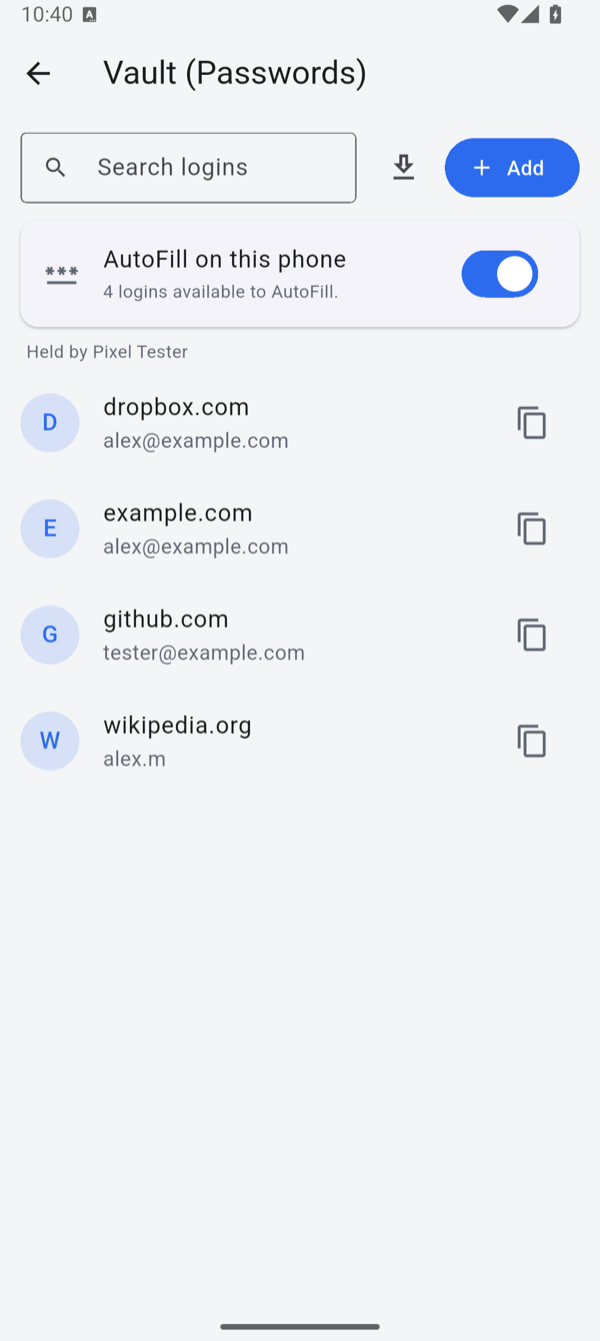
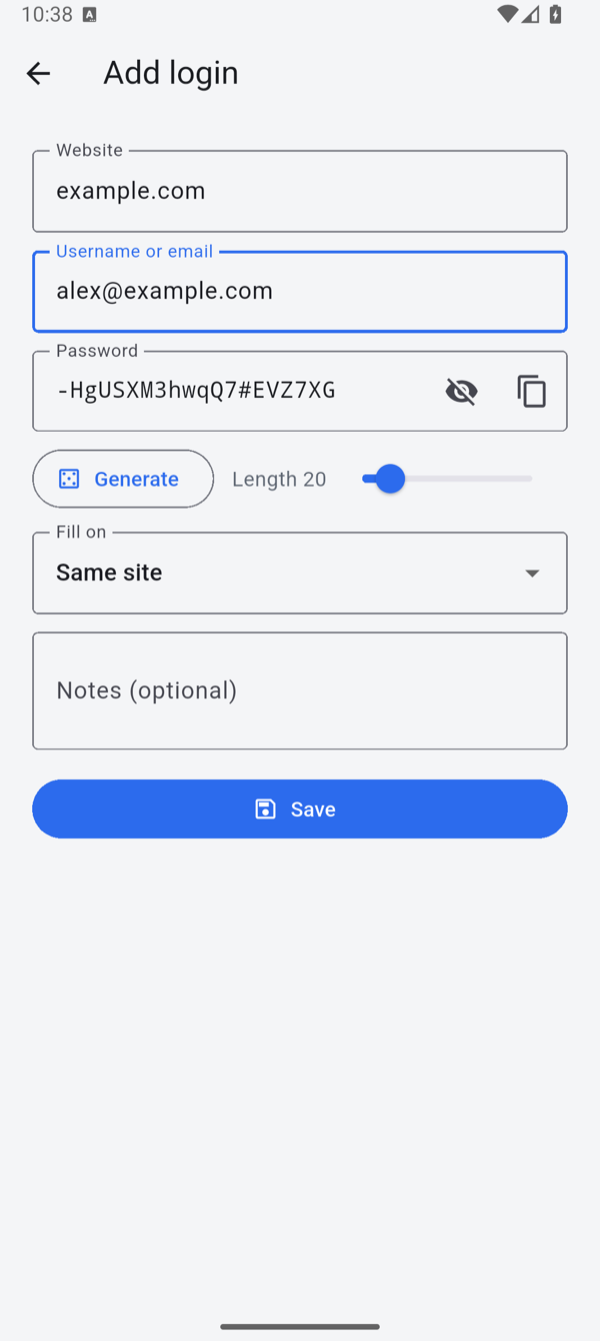
| Fill on | Where the login is offered |
|---|---|
| Same site | The website and its subdomains. A login for github.com also works on gist.github.com. The usual choice. |
| Same origin | Only the exact address you saved, such as https://login.example.com. |
| Exact (top-level only) | The exact address, and only when it’s the page itself, not a login box embedded in another page. |
Every change, and every time you show or copy a password, asks for your fingerprint, face or PIN.
The extension asks to read and change data on websites. It needs that to find login forms and fill them. It never stores a password, and it sends nothing to your phone until you click into a login field or ask it to fill.
You do this once per browser.

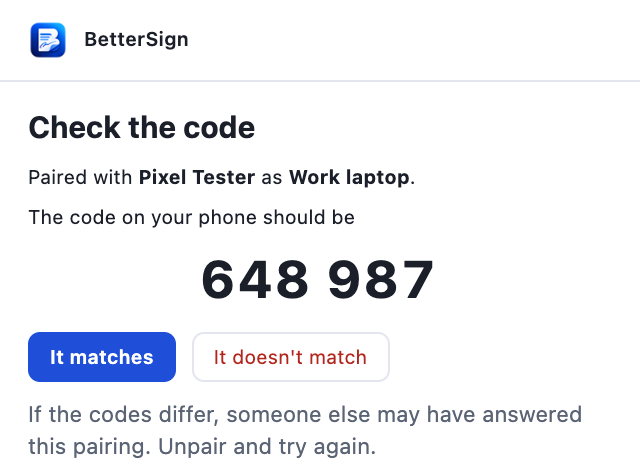
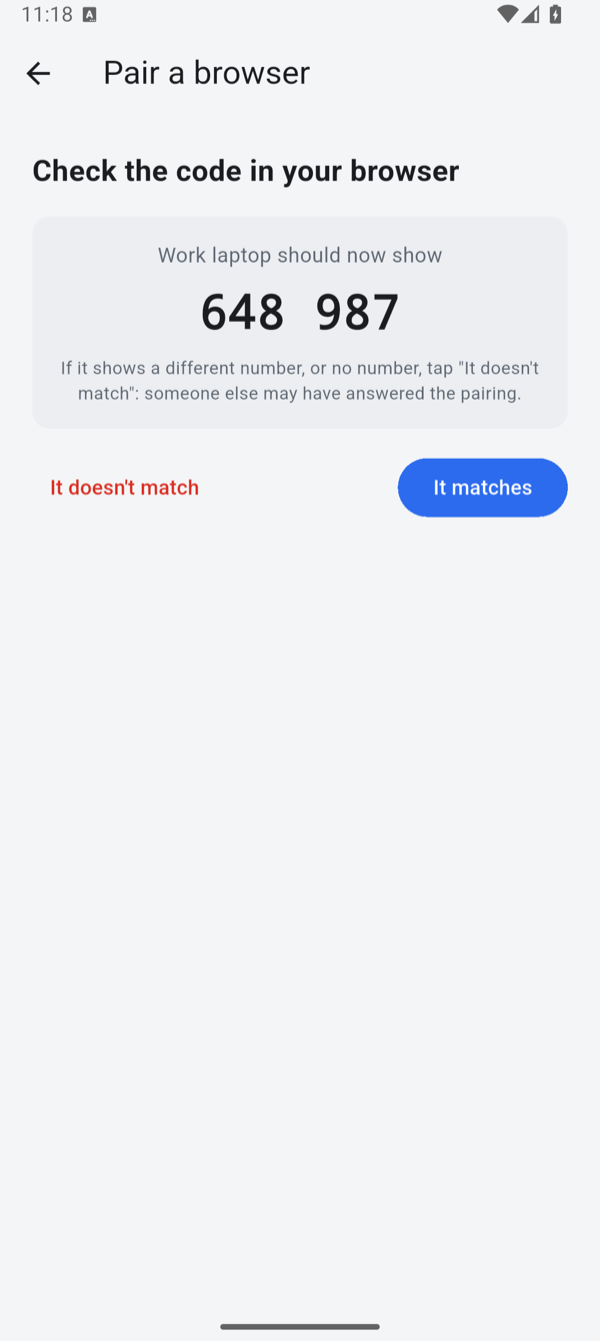
Can’t scan? In the popup, click Copy pairing text, get the text to your phone, and paste it into Pair a browser. Only do this for a browser you’re sitting at: the app asks you to tick I started pairing in this browser. A browser paired this way always asks you to type the full code when you sign in.
The pairing code is valid for 5 minutes. If it runs out, click New code in the popup.

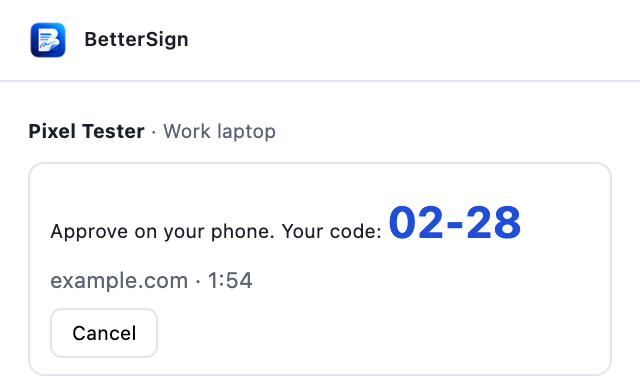
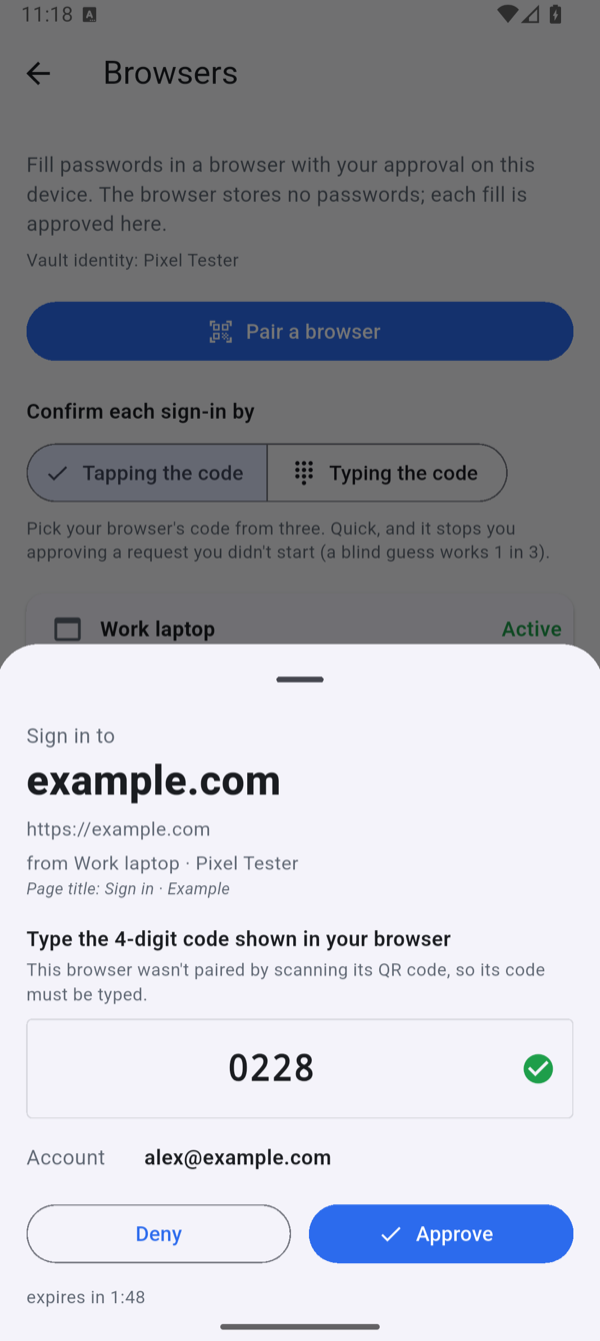
Other ways to ask for a login on the current page: click the small BetterSign button in the login field, press Ctrl+Shift+L (⌘+Shift+L on a Mac), or click Fill this page in the popup.
A request waits about 2 minutes for your answer. To stop one, click Cancel in the popup.
Phishing protection, built in. The address your phone shows comes from the browser itself, not from the web page. A look-alike page such as g1thub.com gets “No saved login for g1thub.com”. Your phone never offers one site’s login to another.
Your phone says No saved login for <site> and offers Add login for this site, with the address already filled in. Save it, and the sign-in carries on.
Both options are in the extension popup. Neither skips the code or your fingerprint.
On your phone, Settings → Browsers lets you choose how you confirm the code:
| Mode | What you do | Best for |
|---|---|---|
| Tap the code (default) | Pick your browser’s code from three | Everyday speed |
| Type the code | Type the 4-digit code | The most assurance (a blind guess passes 1 time in 10,000) |

Why a code at all? Your phone can check that a request came from your paired browser. What it can’t check is that you are at that browser right now. The code ties your approval to the screen in front of you, so a request someone else starts, from malware or a stolen laptop, shows a code you can’t see, and can’t be approved by reflex. A wrong answer cancels the request.
BetterSign can fill your saved logins on the phone itself, in Safari, Chrome and other apps, through the phone’s AutoFill. No extension is needed, and it’s off until you turn it on.
Websites are offered only the logins saved for that site. In apps you pick from your logins (your phone doesn’t say which website an app belongs to). Every fill asks for your face, fingerprint or passcode. AutoFill keeps its own encrypted copy of your logins (never your notes) for the phone to read. Turning it off deletes that copy. Saving a new login from AutoFill isn’t offered yet; add it in the app.
You can also copy a password: open Vault (Passwords) and tap the copy icon next to the login. It’s marked as sensitive, so your phone hides it in clipboard previews, and BetterSign clears it from the clipboard after 1 minute.
Settings → Browsers on your phone lists every paired browser and when it was last used. From there you can:
To remove BetterSign from a browser, click Unpair in the popup, then revoke it on your phone as well.
Open the BetterSign app on your phone and keep it open, then ask again. During early access the app has to be open to hear requests.
Check the address on the phone against the login’s Website. Some sites sign you in on a different address (for example accounts.example.com or a separate domain). Add that address to the login, separated by a comma. Also check Fill on: Same origin and Exact only match the address you saved.
Your phone’s keys changed, for example after a key rotation or restoring a backup. Click Pair again in the popup and pair as in step 4.
The extension never fills hidden fields, and it only fills the page that asked. If the page changed address while you were approving (a redirect), ask again. Logins split across two pages (username first, password on the next) aren’t fully supported yet. Neither are login forms inside embedded frames.
A paired browser can only ask, and every ask needs your phone and your fingerprint, so a browser on its own gives nobody your passwords. During early access your passwords aren’t in the encrypted backup yet, so keep your old password manager until that ships. See After you import.